

Delivery days, gifts and flash sales
Every store app has a Delivery & offers page in the dashboard's menu, beside Products and Orders when your products are in Yallapp; a Yallapp Studio project has it in its menu too, with Card messages. It's made for flower and gift shops, and works for any shop: when and where you deliver and what it costs, gifts and their card, gift add-ons, flash sales and the discount codes shown in the app.
Each part of the page shows only where it works with your shop's source, and says how. A restaurant's or café's orders keep their kitchen's times: delivery days and the gift checkout aren't for them (see Restaurants and cafés).
What works with your shop's source
- Products in Yallapp (no website): everything on this page. Yallapp's checkout charges the delivery time's extra fee, the delivery price and the flash sale's price.
- WordPress with WooCommerce: the delivery days and times, the gift checkout, gifts and the flash sale are in the Yallapp plugin's settings in WordPress (plugin 0.4.44, see On WordPress below). WooCommerce's own shipping zones price shipping. The card messages and the titles in the app come from this page, and gift add-ons are set on WooCommerce's products.
- Shopify, Wix, ikas, Ticimax, IdeaSoft, Salla and Zid: the app asks for the delivery day and time, the gift details and where it goes, and its checkout opens on your platform, which charges its own prices, shipping and fees. Shopify keeps the day, the time, the people and the card on its order (the cart's attributes and note), and Wix in the buyer's note to the shop. The other platforms' orders can't take them: you see them on this page, under Deliveries from the app.
- Your own API: your API serves all of this, each part optional, as the API reference describes it, the card messages too (
GET /store/gift-messages), and your app reads them from there: what you set on this page and in Card messages doesn't reach your app. See the Store endpoints and Connect your own API.
The checkout
Under Checkout, choose how the app's checkout asks for the order:
- Standard checkout: the cart, the delivery day if you turn it on, and the payment.
- Gift checkout: for gifts and flowers. The customer gives their own name, phone and email, the recipient's name, phone and address, the delivery day and time (both required) and the card.
In a Yallapp Studio project, a look with the gift checkout (like Leqaa's) turns it on too, and the page says so. Its look is on Premium elements in Studio.
Delivery days and times
Under Delivery days and times, turn on Customers choose the delivery day, and choose whether A day (and a time) must be chosen. Then set:
- Same-day delivery, with Orders for today until a time like 14:00. Empty: all day.
- Next-day delivery. With same-day delivery off, tomorrow is the first day; with both off, the day after.
- Days ahead: the last day customers can choose, counted from today, up to 60.
- Days you don't deliver, like Fridays. At least one day stays open.
- Time zone: the cut-off and the days are counted in it.
- Delivery times: up to 8, each From and To, with how many Orders it takes and an Extra fee, both optional.
Select Save delivery times. The app shows only what can still be chosen: today until the cut-off, a time of today until it starts, and a full time as full. Yallapp checks the day and the time again when the order is placed, whatever the app sends. The gift checkout always asks for the day and the time.
With a connected platform, a time's orders are counted from the checkouts started in the app, and its extra fee isn't charged: the platform's checkout charges its own fees.
Where you deliver and what it costs
Under Where you deliver and what it costs, choose up to four countries, then all their cities or some, one city a line. The page suggests the largest cities of Turkey, Egypt, Saudi Arabia, the United Arab Emirates, Kuwait, Qatar, Bahrain and Oman, and you can write any city's name. Then choose the Shipping price:
- One price everywhere: your Shipping fee in Shop settings on the Products page, free over the amount set there.
- A price per city: each city's price, and one for your Other cities. Leave that one empty to deliver only to the cities with a price.
- By distance: a Base fee and a price Per km from your shop's latitude and longitude to where the order goes, in a straight line, Up to (km) a distance you choose.
In any of them:
- Cities with their own price: one city a line, with its price after a colon. A city's own price replaces the whole computed fee.
- Add a price per kg: the weight of the products and their options, over the First kg included. Set each product's Weight (kg) on its page in Products, and each option's weight with the options; the page says how many products have none.
- Minimum fee: the least a computed fee comes to.
- Free delivery over the amount set in Shop settings, as before.
Select Save where you deliver. The cart shows the delivery fee line by line: the base, the distance, the weight, the delivery time's extra fee, or free over your amount.
In the app, both checkouts ask where the order goes when you deliver to some places only or price by city or distance: the standard checkout in its Where it goes part, the gift checkout with the recipient and their address. The customer chooses the country (when you deliver to more than one) and the city, from your list when you chose cities, else typed. Priced by distance, they also pin the place on a map: Pin the delivery place on the map opens a full-screen map with a pin that stays in the middle while the map moves under it, a search by address where the map offers it, and My location as one choice; Use this place keeps it. Yallapp measures the distance from your shop to the pin. Where no map is available, the app takes the phone's position instead. A shop without delivery areas or prices by place keeps its checkout as it was.
With a connected platform, its checkout charges its own shipping: here you choose where the app takes addresses. On WordPress, WooCommerce's shipping zones price shipping.
Gifts
Under Gifts, choose what customers can say about a gift at checkout, all of it optional for them:
- A card message, up to the Longest message (characters) you set, from 20 to 500.
- Beginnings to tap: up to 6, one a line, like "Happy birthday!".
- The recipient's name and phone: in the standard checkout, the customer turns on Send it to someone else.
- “Send anonymously”: the card doesn't show the sender's name.
The gift checkout always offers the card, the recipient and "Send anonymously".
Card messages by occasion
Manage card messages opens Card messages: ready messages by occasion, in each of your app's languages. The first time you open it, it fills with Yallapp's starting set in English, Arabic and Turkish: two or three messages for each of 11 occasions (love, birthday, anniversary, congratulations, new baby, get well, thank you, sorry, sympathy, Eid and Ramadan, and Mother's Day). They're yours from then on: Edit, Move up, Move down, Hide or Delete each occasion and each message, Add an occasion of your own, and Add a message to any of them. You can have up to 30 occasions, each with up to 12 messages of up to 500 characters; a language left empty shows the app's main one.
In the checkout, customers pick an occasion, tap a message to fill the card and change it as they like, or write their own. Card messages work with products in Yallapp, WordPress (with the site's next license check) and the connected platforms; an app on its own API reads them from its own API instead, and the page says so.
Gift add-ons
Chocolates, a card, a vase: a gift add-on is sold only with another product. It's never in the app's lists, search, home sections, related products or a flash sale, and never bought alone. The app offers it as Add a little more on a product's page and in the cart, up to 12 at a time, and the cart shows it under the item it goes with ("With …"); removing the item removes its add-ons.
- Products in Yallapp: on a product's page in Products, turn on Sell only as an add-on (gift extra), then choose Offer with: Every product, The products of some categories or Some products. Products and the order's lines mark it Add-on.
- WooCommerce: on the WooCommerce product's page, in the Yallapp box, tick Sell only as an add-on in the app and choose Offer it with. Your website's own shop keeps showing it unless you hide it there (Catalog visibility).
- Shopify: under Gift add-ons on this page, give your add-ons' Shopify product numbers, all the products of a Shopify category (that category is hidden from the app), or the products with a Shopify tag, like yallapp-addon (up to 50 products); then choose what they're offered with.
- Wix, ikas, Ticimax, IdeaSoft, Salla and Zid: the same, by product numbers or a category, without tags.
On a connected platform, the add-ons stay ordinary products there, and the platform's own checkout sells the cart as it is.
Titles in the app
Under Titles in the app, word three titles your own way, in each of the app's languages, up to 40 characters each: The add-ons (“Add a little more”), The card message and The delivery day and time. Left empty, the app uses its own words. In a Studio project, the checkout's look can have its own titles, which come first.
Flash sales
Under Flash sales, select Add a flash sale: this price instead of that one, between two times, with a countdown in the app.
- Name, shown in the app, like "Mother's Day roses", and its name in each of the app's other languages.
- Products, or Or a whole category. With a connected platform, write its Product numbers.
- Discount: A share off (%), from 1 to 90, or A sale price.
- Starts and Ends, in your time zone.
- Units on sale: a number for "only 12 left", or empty for as many as sell.
Each sale shows as On now, Starts with its date, Ended or Sold out, with how many have sold. Edit changes it; Turn off, Turn on and Delete do as they say.
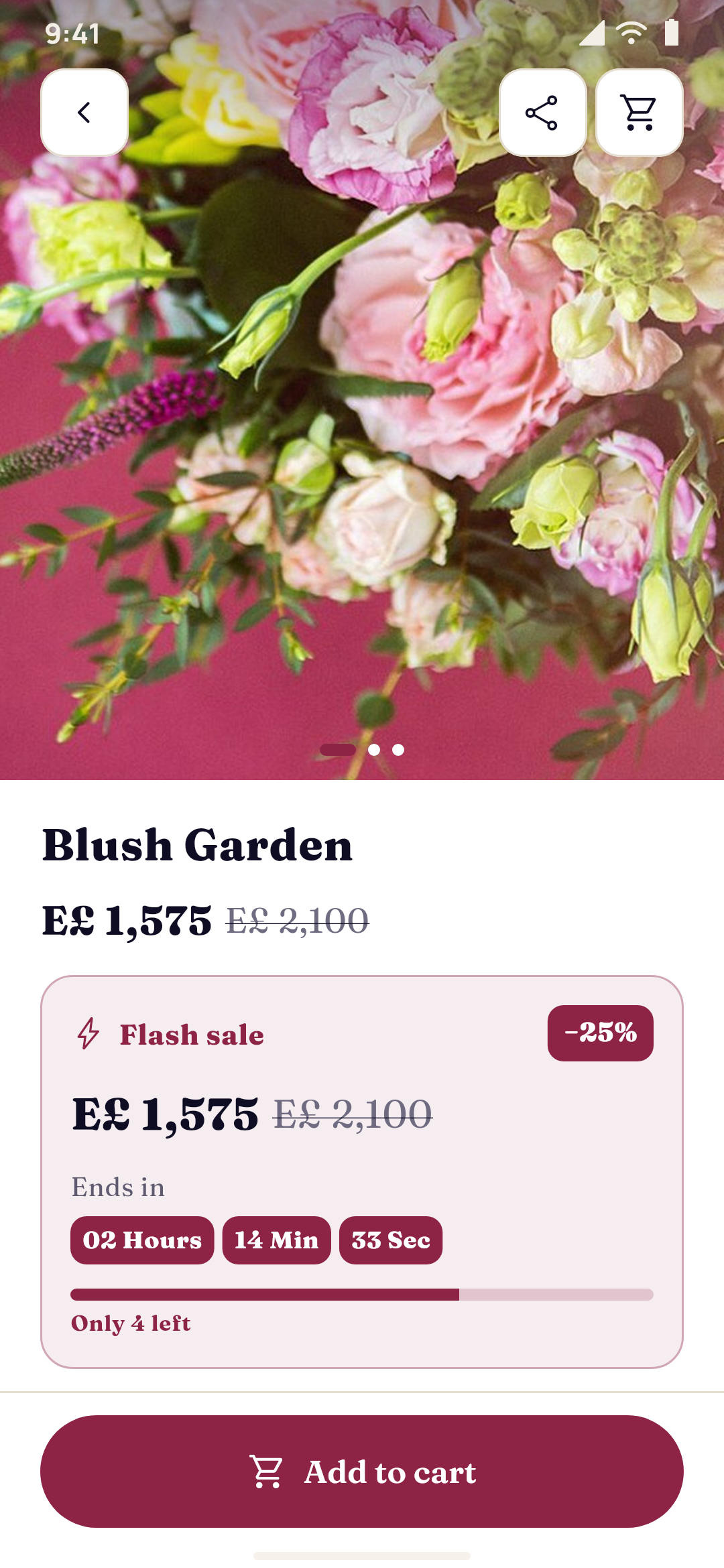
In the app, a product on sale shows the sale price with the price before it struck through, and the cards show the sale's countdown. A product's page has the flash sale's own box: the share off, the price, the countdown in hours, minutes and seconds, and the units left with a stock bar, gone once the sale ends. In Studio, the Flash sale element and the cards' sale badges show your sales on any page (see Premium elements in Studio).
- Products in Yallapp: the checkout charges the flash price while units are left, and an order counts its units once it's paid.
- A connected platform: the app shows the sale, but the platform's checkout charges its own price. Make the same discount on your platform as a code and write it in the sale's discount code field: the app's checkout passes it on, so customers pay the sale price. Without it, customers see the sale in the app but pay the platform's price, and the dashboard says so. The units left aren't counted from the platform's orders. A product's own compare-at price on the platform shows as its sale too.
- WordPress: the flash sale uses WooCommerce's own sale price and schedule, in the plugin's settings, one at a time: changing it for the next starts its units sold again from zero.
Discount codes in the app
A discount code can show in the app on Studio's coupon element, with a button to copy it:
- Products in Yallapp: your codes are under Coupons on the Products page (see Products, orders and shipping). Turn on Show in the app to show one.
- A connected platform: your platform's checkout applies its own codes, and the app passes on the code the customer types. Under Discount codes, add the codes to show in the app, with the same terms as on your platform.
- WooCommerce: tick Show in the app on a coupon in WooCommerce.
A code shows while it's on, has started, hasn't ended and isn't used up.
Deliveries from the app
With a connected platform, Deliveries from the app lists each checkout started in the app with a delivery day or gift details, kept 60 days: the recipient, the day and time, the sender, the address, the card, whether it's sent anonymously, and the items. Each one shows whether it's on the platform's order or Only here. Match them to your platform's orders.
Orders
With products in Yallapp, an order's delivery shows on Orders: the day and time, the zone and the fee, the sender with their phone and email, the recipient with their phone and address, and the card, with "Sent anonymously" when asked. A gift add-on shows under the item it went with. The payment page is filled from the sender, with the recipient's address.
On WordPress
Plugin 0.4.44 adds these to the plugin's Store app settings in WordPress, beside Ask for a delivery date in the cart and the earliest and latest days:
- Same-day orders until, with the earliest delivery at 0 days.
- Delivery times, one a line, like "10:00-13:00 | 20": the time, then how many orders it takes and its extra fee, both optional. Full times show as full in the app, counted from the site's orders, and the fee is added on the checkout.
- Checkout in the app: Standard, or the gift checkout. The sender's details are the WooCommerce order's billing details and the recipient's its shipping details, both kept on the order too.
- Gift message beginnings, one a line (up to 6), Ask for the recipient's name and phone and Let customers send it anonymously.
And a Flash sale card, for one flash sale at a time (plugin 0.4.45's settings say so; changing it for the next starts its units sold again from zero): Run a flash sale, its name in the app and in the app's other languages, its Products or Or a whole category, A share off (%) or One sale price, when it Starts (the site's time zone) and Ends, and the Units on sale. While it's on, its products cost the sale price everywhere, in the shop, the cart and the checkout, as WooCommerce's own sale price. WooCommerce's scheduled sale prices show their end in the app too.
In the app
- Where it goes: the country, the city and, priced by distance, the place pinned on the map.
- When should it arrive?: Today, Tomorrow or Pick a date, with the cut-off ("Order by 14:00 for delivery today", or "Orders for today have closed.") and the day's times as chips with their extra fee, the full ones greyed out.
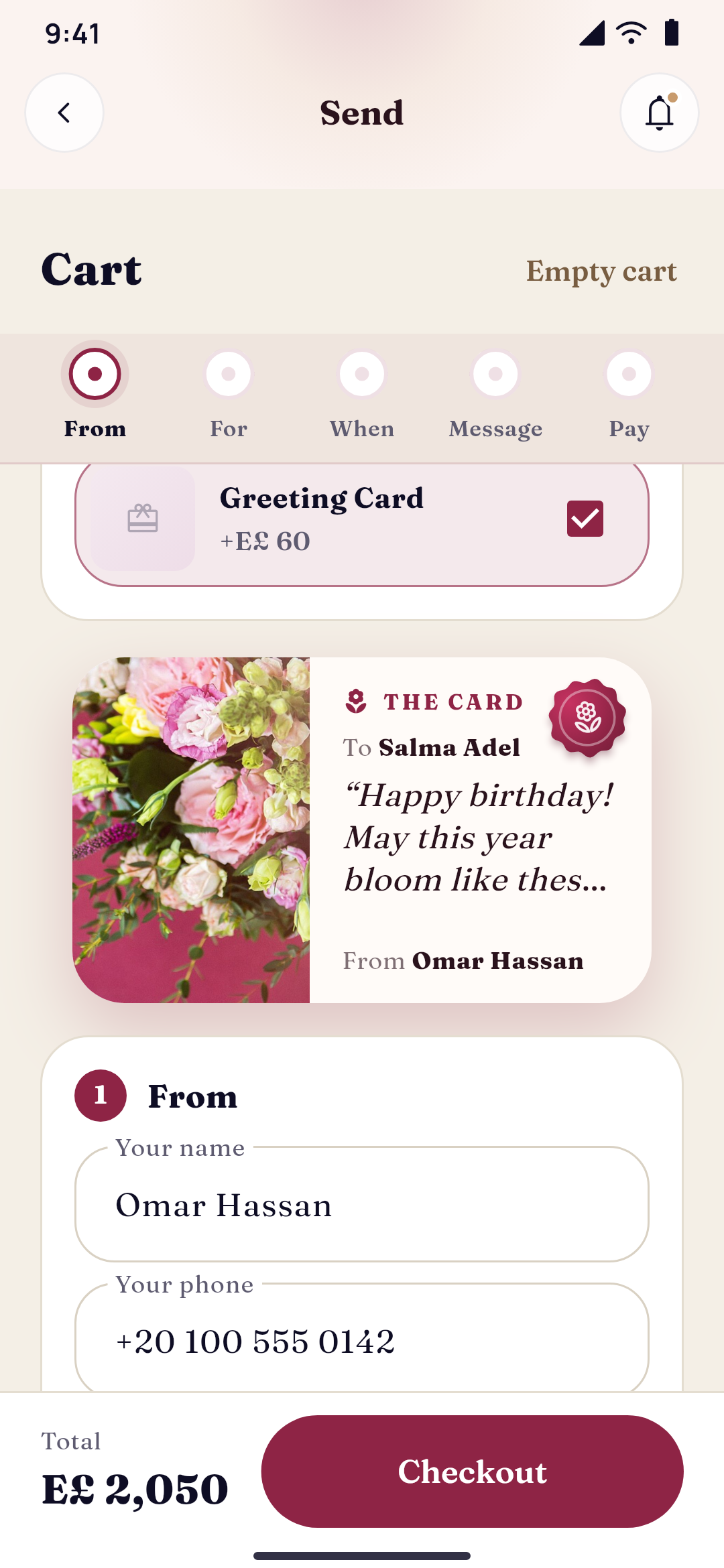
- The gift checkout: who it's from, who it's for, when, the card, then the payment, with the delivery fee line by line. With Studio's gift checkout look, in five steps on one screen (From, For, When, Message and Pay), with the card's live preview.
- The card: the occasions, their ready messages, and Send anonymously.
- Add a little more on a product's page and in the cart.
- Flash sales with their countdown, and the codes you show.
In English, Arabic and Turkish, light and dark, right to left in Arabic. An app built before these features keeps its delivery date and card message as they were until its next build.